Receipt Generator With Multiple Tax Lines
A receipt generator with multiple tax lines allows a business to create an itemized receipt that displays two or more taxes separately instead of combining everything into a single tax amount. This can be useful when a transaction needs distinct state, county, city, district, hospitality, service, or other applicable tax charges.
For U.S. businesses, contractors, freelancers, retailers, service providers, and other professionals, separating tax information can make a receipt easier to understand and reconcile. With makecepeit, users looking to prepare a structured receipt can organize transaction details, item prices, tax lines, payment information, and totals in a clear format without making the document unnecessarily complicated.
The important principle is simple: each tax line should clearly explain what the charge represents, use the correct rate or amount for the underlying transaction, and reconcile with the final total shown on the receipt.
What Is a Receipt Generator With Multiple Tax Lines?
A receipt generator with multiple tax lines is a digital tool that lets you create a receipt containing more than one separately identified tax charge.
Instead of displaying only:
Tax: $8.50
a more detailed receipt might display:
- State Tax: $5.00
- County Tax: $1.50
- City Tax: $2.00
The customer still sees the total tax charged, but also receives a clearer breakdown of how that total was constructed.
This structure can be particularly useful when a transaction is subject to more than one applicable jurisdiction or when a business wants its receipt to match the tax breakdown recorded in its point-of-sale, bookkeeping, or accounting records.
Why Multiple Tax Lines Matter for U.S. Receipts
Sales-tax treatment in the United States can depend on the state, locality, type of product or service, transaction location, and other circumstances. A single generic tax field therefore may not provide enough detail for every transaction.
A business might need to distinguish between different components of a combined tax charge or separately identify another legitimate transaction-based charge.
Clear tax lines can help both the merchant and customer understand the receipt without manually reconstructing the calculation later.
A useful multi-tax receipt should make it possible to understand the subtotal, each separate tax charge, and the final amount paid without requiring additional calculations.
Businesses should always use the tax rates and classifications that actually apply to their transactions. A receipt generator creates the document; it should not be treated as a substitute for tax advice, tax registration, nexus analysis, bookkeeping, or government filing requirements.
What Should a Receipt With Multiple Taxes Include?
A professional receipt should provide enough information to identify the seller, transaction, purchased items or services, taxes, payment, and final total.
Business Information
The receipt should normally identify the merchant or service provider. Depending on the transaction, useful fields may include:
- Business name.
- Business address.
- Phone number or other contact information.
- Store or location number when relevant.
Transaction Details
Include information that distinguishes one transaction from another, such as:
- Receipt number.
- Transaction date.
- Transaction time when relevant.
- Cashier, employee, register, or order reference if needed.
Itemized Products or Services
Every significant product or service should be easy to identify. An itemized receipt can include the description, quantity, unit price, and extended amount.
Subtotal
The subtotal should show the amount before applicable tax lines and other clearly identified adjustments.
Separate Tax Lines
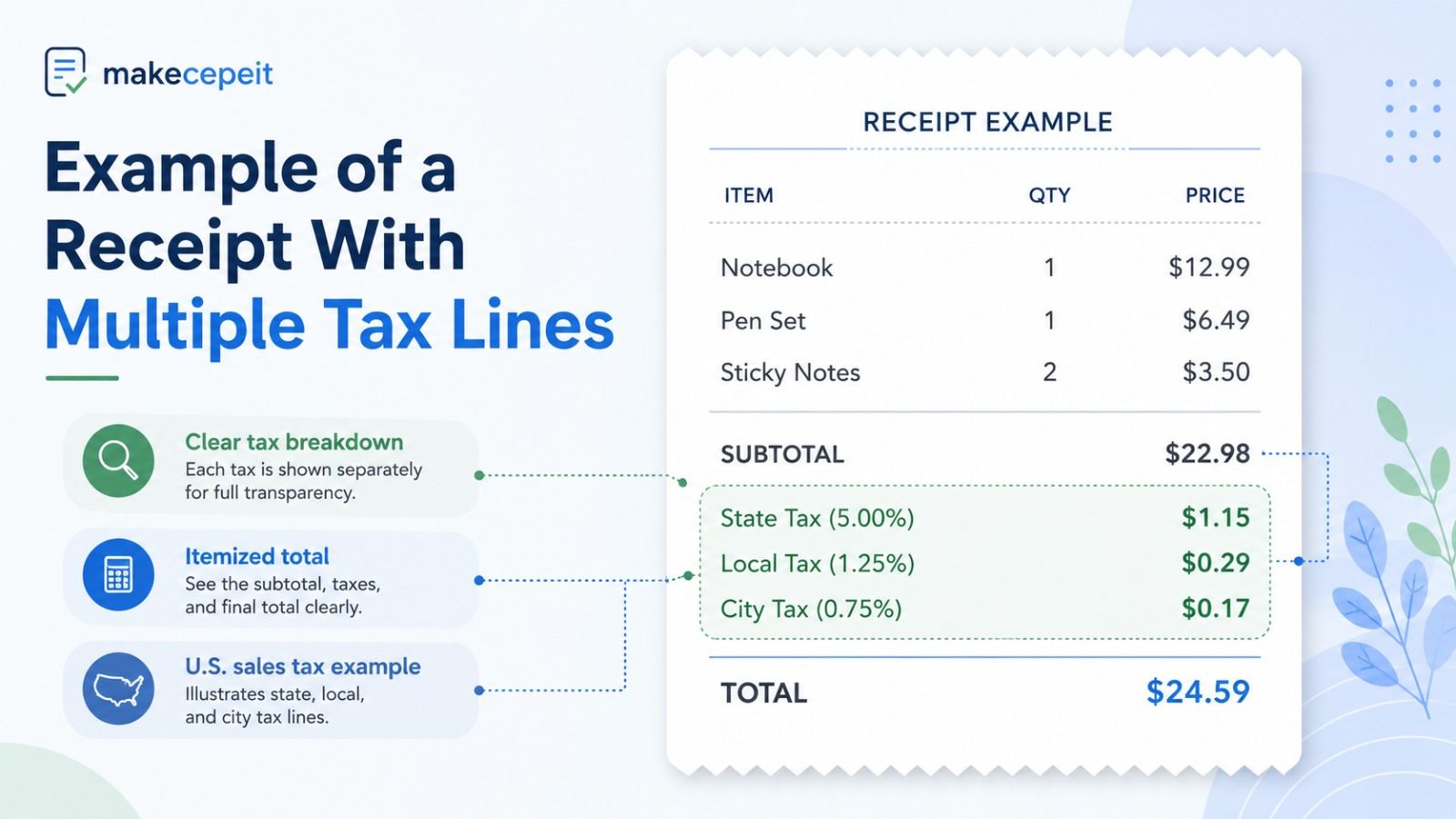
This is the key feature of a multiple-tax receipt. Each applicable tax can have its own label and amount, for example:
- State Sales Tax.
- County Tax.
- City Tax.
- District Tax.
- Other applicable transaction-specific tax.
Grand Total
The total must reconcile with the subtotal, taxes, discounts, fees, and other legitimate adjustments appearing on the receipt.
Payment Information
The receipt can also identify whether the customer paid using cash, card, check, bank transfer, or another accepted payment method. Avoid unnecessarily displaying sensitive payment information.
Example of a Receipt With Multiple Tax Lines
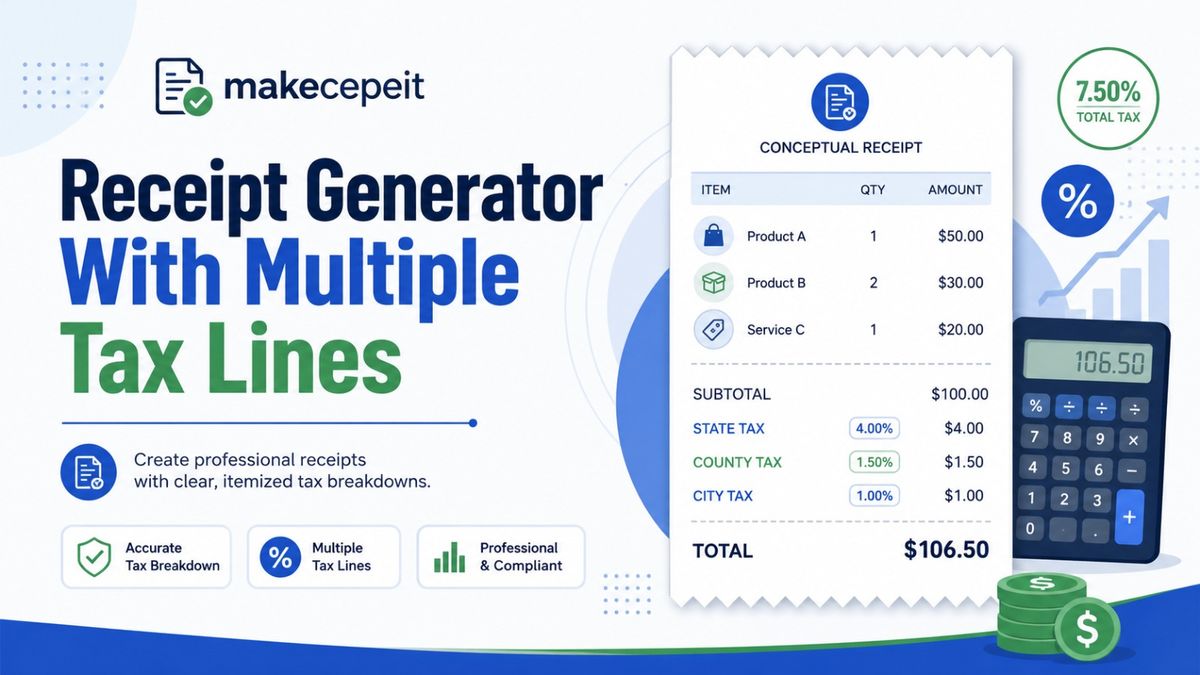
Consider a hypothetical transaction with a taxable subtotal of $100.00. Assume, purely for illustration, that the applicable transaction includes three separate tax components.
| Receipt Component | Example Amount |
|---|---|
| Subtotal | $100.00 |
| State Tax | $4.00 |
| County Tax | $1.50 |
| City Tax | $1.00 |
| Total Tax | $6.50 |
| Grand Total | $106.50 |
This example is not intended to represent the tax rate of any particular U.S. location. It simply demonstrates how multiple tax charges can be presented as individual lines while still producing one clear final total.
How to Create a Receipt With Multiple Tax Lines
The easiest workflow is to build the receipt from the transaction subtotal upward. Enter the underlying transaction accurately first, then add each legitimate tax component separately.
- Enter the business information. Add the merchant name and relevant contact or location details.
- Add the receipt details. Enter the receipt number, transaction date, and any useful reference information.
- List the purchased items or services. Check quantities, descriptions, and prices before calculating tax.
- Confirm the taxable subtotal. Make sure the subtotal reflects the actual items subject to the relevant calculation.
- Add the first tax line. Give it a descriptive label, such as State Tax.
- Add additional tax lines. Create separate rows for county, city, district, or other applicable taxes when necessary.
- Verify the calculations. Confirm that each tax amount is based on the correct taxable amount and applicable rate.
- Check the grand total. Make sure the receipt mathematically reconciles.
- Add payment details. Record the legitimate payment method without exposing unnecessary sensitive data.
- Review before saving or sharing. Confirm names, dates, amounts, taxes, and totals.
Separate Tax Lines vs. One Combined Tax Line
Both formats can produce the same final tax amount, but they communicate different levels of detail.
| Feature | Single Tax Line | Multiple Tax Lines |
|---|---|---|
| Tax visibility | Shows one combined amount | Shows each tax separately |
| Receipt simplicity | Very simple | More detailed |
| Useful for multiple jurisdictions | Limited detail | Better breakdown |
| Reconciliation | Requires less display space | Can make individual components easier to review |
| Best use | Transactions needing one tax figure | Transactions needing a tax breakdown |
The appropriate format depends on the actual transaction and applicable recordkeeping requirements. More tax lines do not automatically make a receipt more accurate. The underlying rates, taxable amounts, labels, and calculations still need to be correct.
Benefits of Using a Multiple Tax Receipt Generator
Clearer Tax Breakdown
Separating taxes makes the calculation easier to understand. Customers can immediately see that the final tax amount is composed of multiple charges rather than one unexplained figure.
Better Internal Recordkeeping
A detailed receipt can make transaction review easier when comparing receipts with sales records or bookkeeping entries.
Professional Presentation
A structured receipt containing clearly labeled items, taxes, totals, and payment information is easier to read than an improvised document or manually typed list of charges.
Flexible Receipt Creation
Different transactions may require different tax structures. A customizable receipt maker gives the user greater control than a template with one fixed tax field.
Easier Customer Review
When customers have questions about a total, separate tax lines can make it easier to identify which part of the transaction they are asking about.
Multiple Taxes on Different Products or Services
One of the more complicated situations occurs when not every item in a transaction receives identical tax treatment.
For example, a transaction could contain several categories of products or services. Depending on the applicable rules, one item may be taxable differently from another, or a particular charge may apply only to part of the transaction.
In these situations, simply applying every tax percentage to the entire subtotal can produce an incorrect result.
A better workflow is to determine:
- Which items are taxable.
- Which taxable base applies to each tax.
- Which rate applies.
- Whether an exemption or special treatment applies.
- How each tax should appear on the receipt.
If tax treatment is uncertain, verify it with the relevant tax authority or a qualified tax professional before issuing the receipt.
When Is a Multi-Tax Receipt Especially Useful?
A multiple tax receipt can be helpful in several legitimate business situations.
Retail Transactions
Retailers may want to display different applicable tax components while still giving customers one clear amount paid.
Restaurants and Hospitality Businesses
Some hospitality transactions can contain several types of charges. Clear labels help distinguish taxes from tips, service charges, discounts, and other amounts.
Contractors and Service Providers
A service receipt may contain labor, materials, taxable products, or other transaction components. Separating the financial information helps preserve a clearer record.
Freelancers and Small Businesses
Small businesses that need simple proof of payment can benefit from a receipt format that provides more control over tax labels and totals without requiring a complex POS system for every document.
Replacement Receipts for Genuine Transactions
A receipt generator may also be used to recreate a legitimate transaction record when the original document is unavailable, provided the replacement accurately reflects the real transaction and is not presented deceptively.
Why Use makecepeit for a Receipt With Multiple Tax Lines?
makecepeit is relevant for users who want more control over how transaction information appears on a receipt. When multiple tax components must be shown, flexibility becomes more important than simply producing a generic subtotal-and-total template.
A practical receipt creation workflow should allow the user to organize information logically:
- Business details at the top.
- Transaction identifiers and dates.
- Individual products or services.
- A clear subtotal.
- Separate tax or charge lines.
- A final total.
- Payment information.
- Optional notes when additional explanation is required.
The goal is not to make a receipt look complicated. It is to give each meaningful component of the transaction a clear place so the finished document can be understood quickly.
For users searching for a receipt maker with multiple taxes, this flexibility is often more useful than a rigid template that supports only one generic tax field.
How to Label Multiple Tax Lines Clearly
A tax label should tell the reader what the charge represents. Avoid vague names when a more specific label is available.
Examples might include:
- State Sales Tax.
- County Sales Tax.
- City Sales Tax.
- Local Tax.
- District Tax.
Do not label a service charge, delivery fee, gratuity, discount, or unrelated surcharge as a tax unless it actually qualifies as one under the applicable rules.
Clear classification matters because customers, accounting teams, and tax professionals may interpret a line labeled "Tax" differently from a line labeled "Service Charge."
Tips Before Creating a Multi-Tax Receipt
- Verify the actual transaction first. Build the receipt from genuine purchase or payment records.
- Use the correct taxable base. A percentage is only accurate when it is applied to the correct amount.
- Label every tax clearly. Avoid ambiguous abbreviations unless your customer will understand them.
- Separate taxes from fees. Do not combine unrelated charges under one misleading label.
- Check rounding. Small rounding differences can prevent the final total from matching payment records.
- Keep the layout readable. More detail should improve clarity rather than overwhelm the customer.
- Preserve supporting records. The receipt should agree with invoices, orders, payment confirmations, or accounting records where applicable.
- Confirm local requirements. Tax rules can vary by jurisdiction and transaction type.
Common Mistakes to Avoid
Applying Every Tax to the Entire Subtotal
Different taxes or product categories may have different taxable bases. Confirm what each tax actually applies to before calculating it.
Using an Incorrect Location or Rate
Do not select a tax rate because it looks typical. Use the rate applicable to the actual transaction.
Combining Taxes and Fees
Taxes, tips, service charges, shipping costs, discounts, and miscellaneous fees should be identified accurately instead of being merged into a misleading tax line.
Forgetting to Recheck the Grand Total
Every receipt should reconcile mathematically:
Subtotal + applicable taxes + legitimate additional charges − applicable discounts = final total.
Using Generated Receipts to Misrepresent Transactions
A receipt generator should be used for legitimate business documentation, genuine payments, replacement records, testing, demonstrations, or other lawful purposes. Creating or altering a receipt to deceive an employer, customer, bank, insurer, government agency, tax authority, or another party can create serious legal and financial consequences.
Receipt Generator With Multiple Tax Lines for U.S. Businesses
For U.S. users, flexibility is especially valuable because tax treatment can vary from one jurisdiction and transaction type to another. A business operating in New York City may encounter a different tax structure from one operating in Houston, Los Angeles, Chicago, Miami, or another market.
The receipt generator therefore should not make assumptions about which tax applies. The business should determine the correct tax treatment, while the generator provides a structured way to display the resulting information.
This distinction is important. A receipt-making tool can help organize and calculate information supplied by the user, but responsibility for determining the legally correct tax treatment remains with the business.
How to Make Receipts Easier to Reconcile
A good receipt is not merely visually attractive. Its numbers should be easy to trace.
Before issuing a receipt, check three layers:
- Item layer: Do quantities and prices match the transaction?
- Tax layer: Does each tax line use the intended taxable amount and rate?
- Payment layer: Does the grand total equal the amount actually paid?
This simple review catches many common receipt errors before the document reaches a customer or enters the business records.
Final Thoughts
A receipt generator with multiple tax lines is useful whenever a transaction needs more tax detail than a single combined field can provide. The strongest receipt format keeps the process transparent: itemized purchases first, followed by the subtotal, clearly named taxes, additional legitimate adjustments, payment information, and a reconciled final total.
For businesses and professionals in the United States, the ability to customize individual tax lines can make transaction documentation clearer and easier to review. The key is accuracy. Every tax, rate, product, payment, and total should reflect the actual transaction and applicable requirements.
If you need to prepare a professional receipt containing separate state, local, city, county, or other applicable tax lines, makecepeit provides a practical starting point for organizing the receipt clearly. Enter the genuine transaction information, review every calculation, and create a document that accurately reflects what was purchased and paid.
Create a Clear Multi-Tax Receipt With makecepeit
When one tax field is not enough, a structured receipt makes the transaction easier to understand. Use makecepeit to organize your genuine transaction details, separate applicable tax lines, review the calculations, and create a professional receipt that clearly shows how the final amount was reached.
Frequently asked questions
- Can a receipt have multiple tax lines?
- Yes. A receipt can display multiple tax lines when separate taxes apply or when a detailed breakdown is appropriate for the transaction.
- How do I create a receipt with state and local tax?
- Enter the transaction subtotal, then create separate lines for the applicable state and local taxes before calculating the final total.
- Can I put state, county, and city tax on one receipt?
- Yes, when those taxes legitimately apply to the transaction. Each charge should be accurately labeled and calculated.
- Should multiple taxes be combined or shown separately?
- Either format may be used depending on the transaction and applicable requirements, but separate lines provide a clearer breakdown.
- Can different items have different tax rates?
- They can in some situations. Tax treatment depends on the item, service, jurisdiction, and applicable rules, so verify the correct treatment before calculating the receipt.
- What information should an itemized receipt contain?
- A useful receipt generally includes business details, transaction information, purchased items or services, subtotal, applicable taxes, final total, and payment information.
- Can I add custom tax names to a receipt?
- Custom labels can be useful when they accurately describe legitimate taxes or charges associated with the real transaction.
- Is a receipt generator the same as tax software?
- No. A receipt generator creates transaction documents. It does not replace professional tax software, government filing systems, or qualified tax advice.
- How can I check whether multiple tax calculations are correct?
- Verify the taxable amount for each tax, multiply it by the applicable rate, review rounding, and confirm that all amounts reconcile with the final payment total.
- Can I use makecepeit for receipts with multiple taxes?
- makecepeit can be used as a practical receipt-creation solution when you need to organize itemized transaction information and separate applicable tax lines in a clear format.